🛠️ Synology NAS: How to Get a Wildcard Let’s Encrypt Certificate for Any Domain
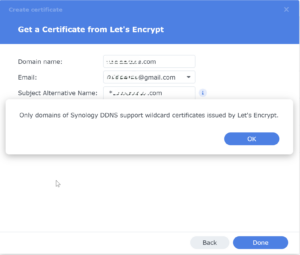
Obtaining a wildcard Let’s Encrypt certificate on your Synology NAS can be a bit tricky due to the limitations of DSM 7 (DiskStation Manager). By default, DSM 7 supports standard domain certificates via HTTP-01 challenges, but wildcard certificates require DNS-01 challenges, which involve creating specific DNS TXT records. Unfortunately, DSM 7 does not have built-in support for automated DNS-01 challenges, so you’ll need to take some extra steps. But don’t worry—I’ve got you covered! 😉
Limitations and Workarounds
- Native DSM 7 Support: Only standard domain certificates via HTTP-01 challenges are natively supported, which requires exposing your NAS to the internet.
- Wildcard Certificates: For wildcard certificates, DSM 7 does not support automated DNS-01 challenges, making it necessary to manually configure DNS records or use third-party tools.
🔑 The Solution: Use the GitHub repository “Create and maintain a Let’s Encrypt certificate on a Synology NAS” by Jess Thrysoee, and leverage Cloudflare as your DNS provider. Cloudflare is one of the many supported DNS providers that can automate the DNS-01 challenges required for wildcard certificates.
nStep 1: Configure the Environment
First, you need to update the environment variables in the /usr/local/etc/synology-letsencrypt/env file with your domain(s), email, and DNS API TOKEN.
DOMAINS=(--domains "example.com" --domains "*.example.com")
EMAIL="user@example.com"

# Specify DNS Provider
DNS_PROVIDER="cloudflare"

# --- Use API Token Method ---
# Remove the old Global API Key variables
# export CLOUDFLARE_EMAIL=xxxxxxxx@gmail.com
# export CLOUDFLARE_API_KEY=xxxxxxxxxxx

# Add the new API Token variable
export CLOUDFLARE_DNS_API_TOKEN="PASTE_YOUR_NEWLY_CREATED_TOKEN_HERE"
🔒 Important: Make sure the CLOUDFLARE_DNS_API_TOKEN and not CLOUDFLARE_API (global) from Cloudflare.

Click Profile on the Right Corner to Access the API Token Menu. Generate the token using the Edit Zone Template
Set Zone – DNS to Edit and
Set Zone – Zone to Read
Set Zone Resources to Specific Zone ie your website from dropdown
Step 2: Run the Script
Next, follow the instructions in the GitHub repository to run the script:
/usr/local/bin/synology-letsencrypt.sh🔄 Automate Renewal with Task Scheduler for Wildcard Let’s Encrypt
Let’s Encrypt certificates need to be renewed every 90 days. To avoid any service interruptions, it’s best to renew them about 30 days before they expire. You can automate this renewal process using the Task Scheduler on your Synology NAS.
Under Task Settings, set the User-defined script to:.
Go to Synology DSM -> Control Panel -> Task Scheduler.
Click Create -> Scheduled Task -> User-defined script.
Under General, set the User to root.
/bin/bash /usr/local/bin/synology-letsencrypt.shTroubleshooting Tips for Synology SSL Certificates
Setting up wildcard certificates can sometimes run into hurdles. Here are some common issues and how to resolve them:
- DNS Propagation: If the DNS-01 challenge fails, it might be due to DNS propagation delays. Ensure that your DNS provider (Cloudflare) has updated the TXT records and wait a few minutes before retrying. Sometimes it can take up to 24 hours, but with Cloudflare, it is usually within minutes.
- API Token Permissions: Double-check that your Cloudflare API token has ‘DNS:Edit’ and ‘Zone:Read’ permissions for the specific zone. Without these, the script cannot create the required TXT records. Using a Global API key is less secure and not recommended for this setup.
- Script Path Errors: Verify that the script
synology-letsencrypt.shis located in the correct directory (usually/usr/local/bin/) and has execution permissions (chmod +x). If the path is different, update your Task Scheduler command accordingly. - DSM Updates: Occasionally, major DSM updates might change internal configurations or security policies. If you’ve recently updated your NAS, you might need to re-verify your environment variables or the script compatibility with the latest DSM version.
- Network Access: Ensure your Synology NAS has outbound access to the internet to communicate with Let’s Encrypt and Cloudflare APIs. If you have strict firewall rules, you might need to whitelist certain endpoints.
For those looking to expand their self-hosting capabilities beyond Synology, you might be interested in setting up a VPS with Docker or exploring other self-hosted VPS solutions. These platforms offer even more flexibility for managing SSL certificates and complex web architectures, allowing you to run a wider variety of services securely.
nConclusion: And That’s It!
Enjoy your new wildcard Let’s Encrypt certificate on your Synology NAS! This setup will ensure your certificates are always up to date, with minimal hassle on your part.
If you run into any issues, don’t hesitate to consult the GitHub repository or ask for help from the community. Happy NAS managing! 🌟